


- Web templates
- E-commerce Templates
- CMS & Blog Templates
- Facebook Templates
- Website Builders
FAQs
General Tutorials
Featured templates
MonsterONE Subscrioption









This tutorial will show you how to install static blocks manually in Magento store.
Magento. How to install sample static blocks manually
In case you are installing the template over the live store or you just don’t want to install template sample data, you need to configure the static blocks manually.
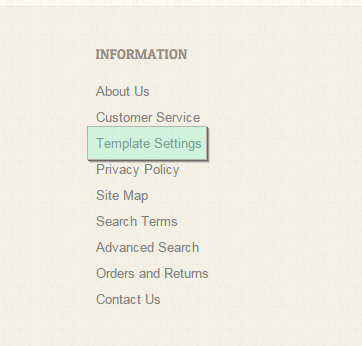
You should open a preview of the template in a browser. You can find a page "Template Settings" with template settings for static blocks configuration under Information block in footer area:
The code for blocks is located in “sources/demo/static_blocks” folder of your template package.
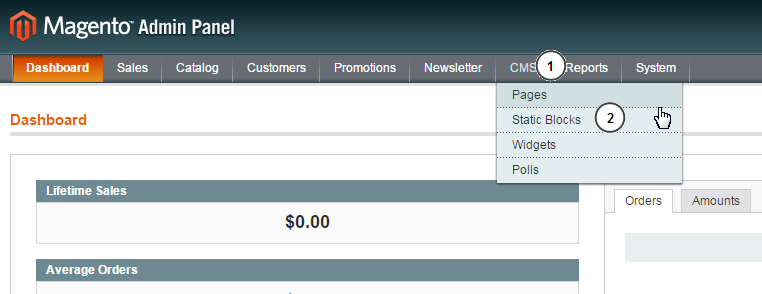
Log into your Magento admin panel and navigate to CMS -> Static blocks:
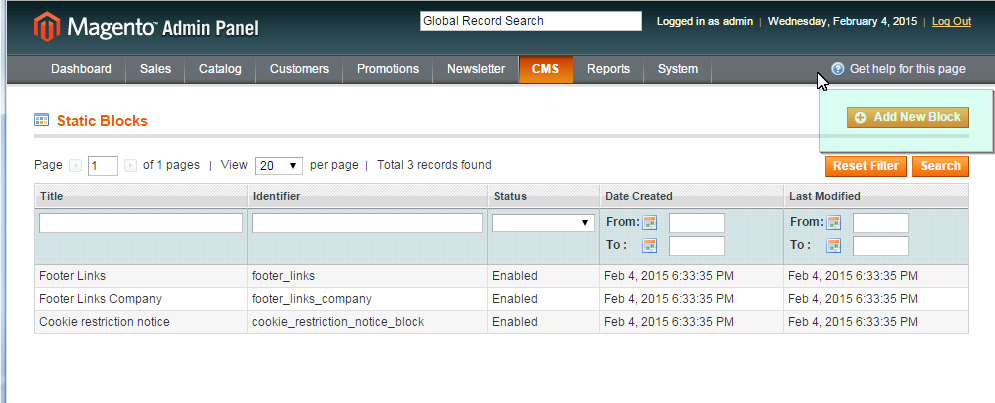
Click ‘Add New Block‘ button in the top right corner:
Open Template settings page on the template preview – and copy Block Title and Identifier from there to the corresponding fields of the static block.
Open "sources/demo/static_blocks" folder and copy the code from the appropriate .phtml file and paste it into the ‘Content‘ field:
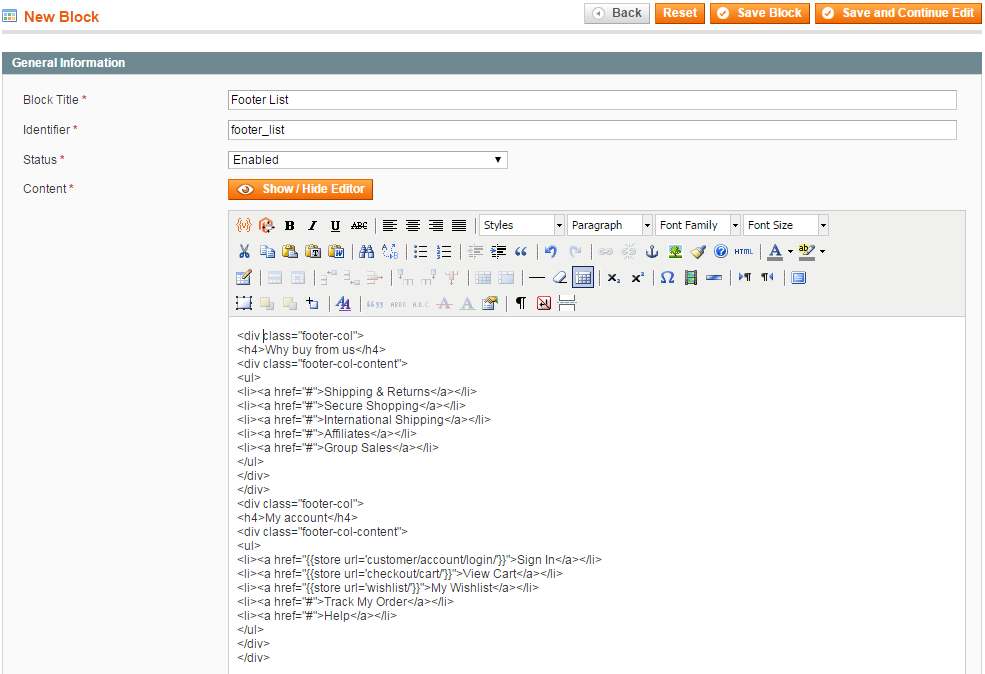
Click Save block button:
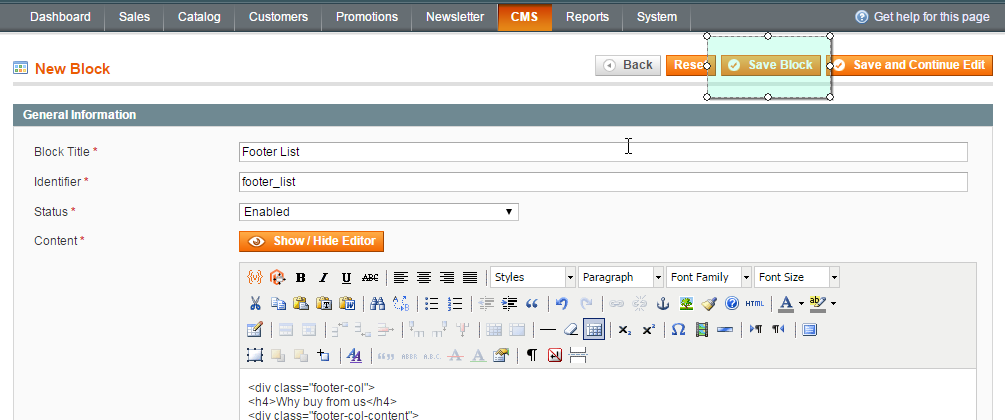
Add all static blocks listed on Template settings page the same way. Static blocks quantity and content depends on the templates and may vary.
Feel free to check the detailed video tutorial below:
