


- Web templates
- E-commerce Templates
- CMS & Blog Templates
- Facebook Templates
- Website Builders
FAQs
General Tutorials
Featured templates
MonsterONE Subscrioption









This tutorial will show you how to insert a Google map into your WordPress template using a shortcode.
WordPress. How to insert Google map using shortcode
.jpg)
1. Log into your admin panel and create a new page or post.
2. In the Visual mode click the ‘Insert ShortCode’ icon.
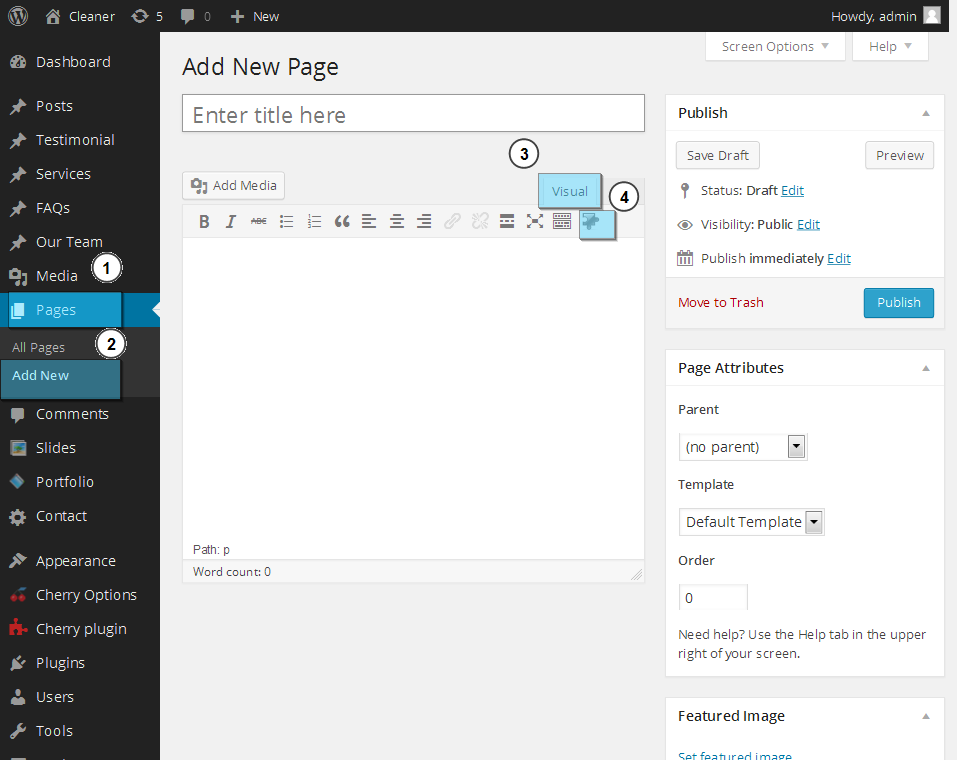
3. You will see the ‘Shortcode settings’ pop-up:
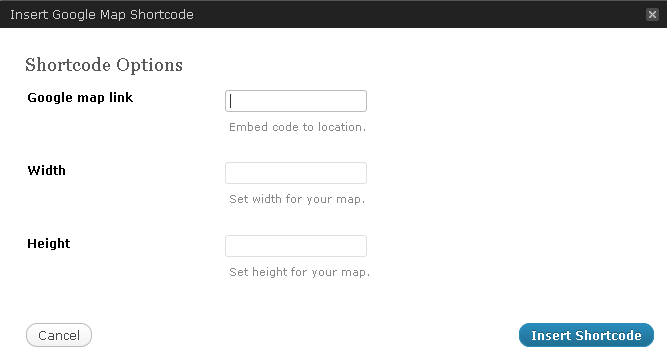
4. To fill the first field, you need to generate a Google Map link. Go to https://www.google.com/maps/ and find the required location using the search tool in the top left corner.
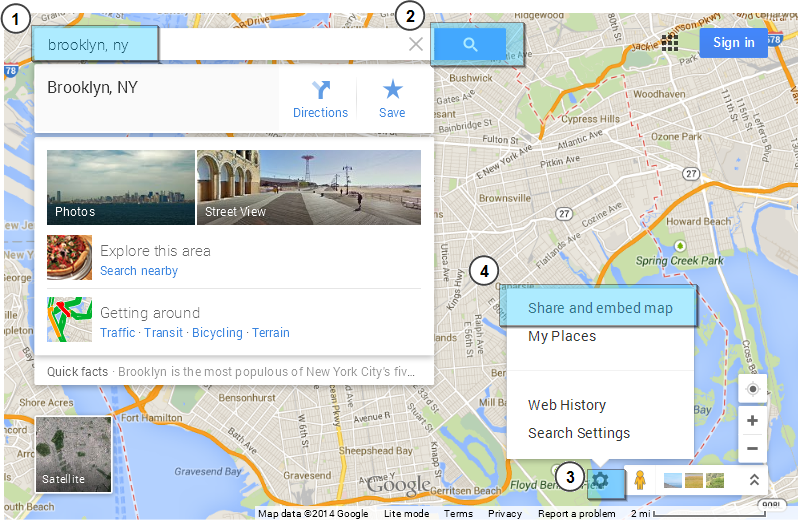
5. Navigate to Settings->Share->Embed map.
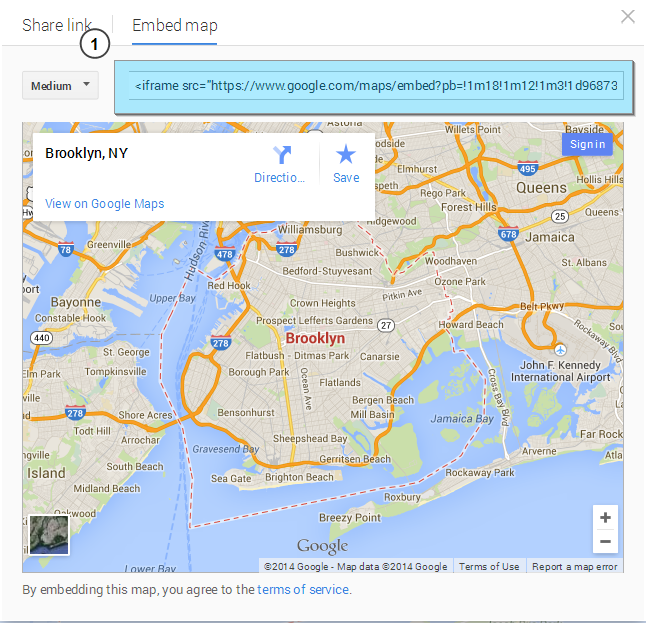
5. Open ‘Embed Map’ tab and copy the code that starts with https://, basically the value of the “src” attribute:
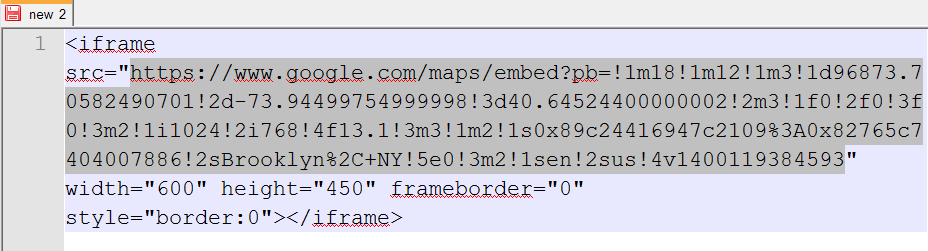
6. Paste it into the ‘Google map link’ field of the ‘Shortcode settings’ pop-up. Set the width and height parameters for your new Google Map.
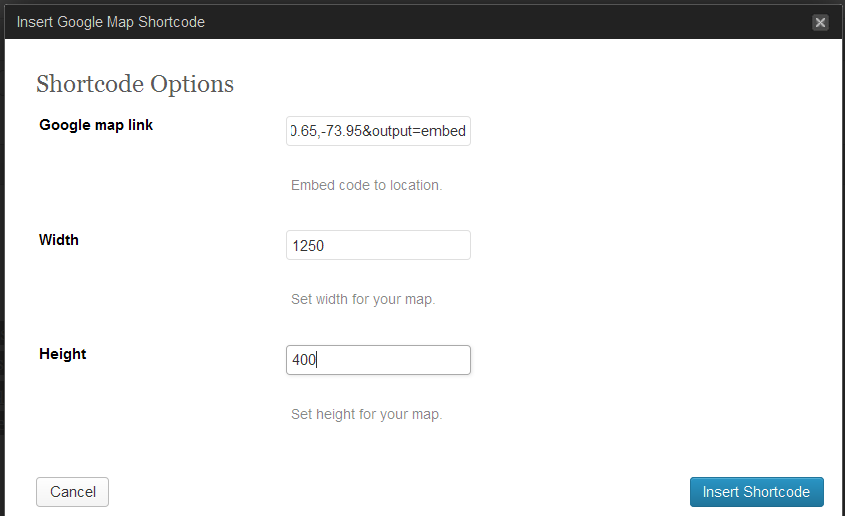
7. Use the ‘Insert Shortcode’ button and save the changes. A Google Map has been added.
This is the end of the tutorial. Please let us know if you have any questions.
Feel free to check the detailed video tutorial below:
